
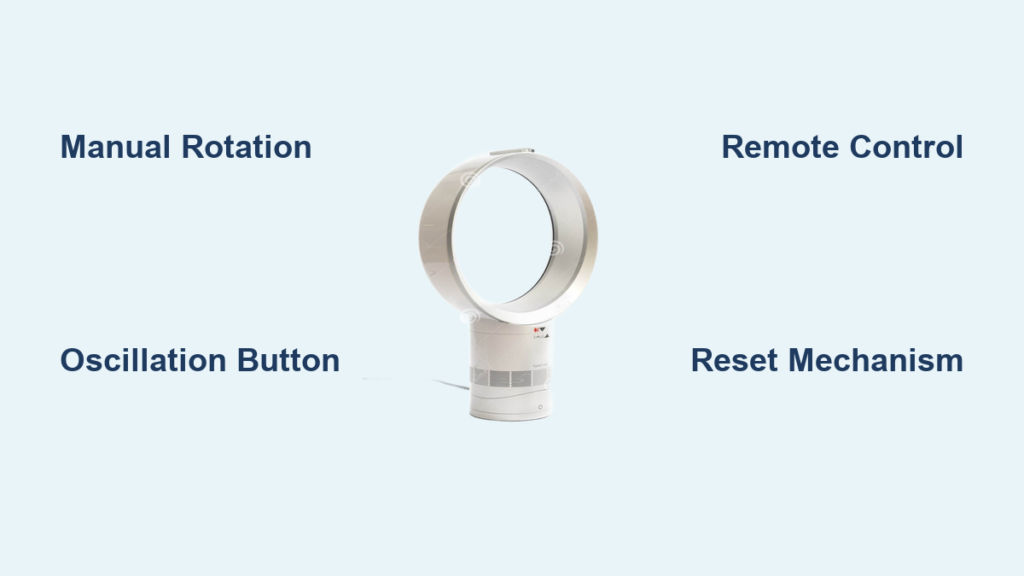
That frustrating moment when your Dyson Cool fan sits perfectly still while you’re sweltering in the summer heat—it happens more often than you’d think. Knowing how to make a Dyson Cool fan rotate properly transforms your experience from stagnant air to refreshing circulation in seconds. Whether you’re trying to direct purified air across your entire living space or target a specific spot on your desk, mastering rotation control is essential for maximizing your Dyson’s performance. This guide reveals every method to activate and customize your fan’s rotation, from manual adjustments to smart app controls, so you can create the perfect airflow pattern for any room.
Manually Positioning Your Dyson Cool Fan Head Without Remote
When your remote goes missing or batteries die, knowing how to make a Dyson Cool fan rotate manually saves the day. Unlike traditional fans with fixed heads, Dyson’s innovative design allows direct physical adjustment of the airflow direction—no electronics required. The fan head assembly rotates smoothly in both horizontal and vertical planes, giving you immediate control over where the air goes.
Adjusting the Fan Head for Targeted Airflow
Start by gently grasping the loop amplifier (the circular front section) and rotating it left or right to change the horizontal direction. For vertical adjustment, push the top of the loop down or pull it up to tilt the airflow toward the ceiling or floor. Some Dyson models feature Focus Mode, which concentrates purified air into a powerful stream ideal for personal cooling—you can manually aim this focused beam precisely where needed. Models with 350° rotation capability let you physically swivel the entire unit on its base to cover nearly the full circle before activating automatic oscillation.
Finding the Optimal Starting Position
Before enabling oscillation, position your fan where it can cover the maximum area without obstruction. Place it in a corner for wide coverage or near a seating area for targeted airflow. If you’re using your Dyson as an air purifier, angle it toward high-traffic zones where pollutants accumulate. For best results, ensure at least 18 inches of clearance on all sides to prevent airflow blockage during rotation. This simple positioning step makes a dramatic difference in how effectively your Dyson Cool fan circulates air throughout your space.
Activating Oscillation Mode on Your Dyson Fan
Oscillation mode is the key to transforming your Dyson from a directional breeze to whole-room cooling. Unlike basic fans with limited swing ranges, Dyson models offer multiple oscillation angles to match your specific needs—whether you want gentle side-to-side movement or nearly 360° rotation.
Using the Physical Control Panel
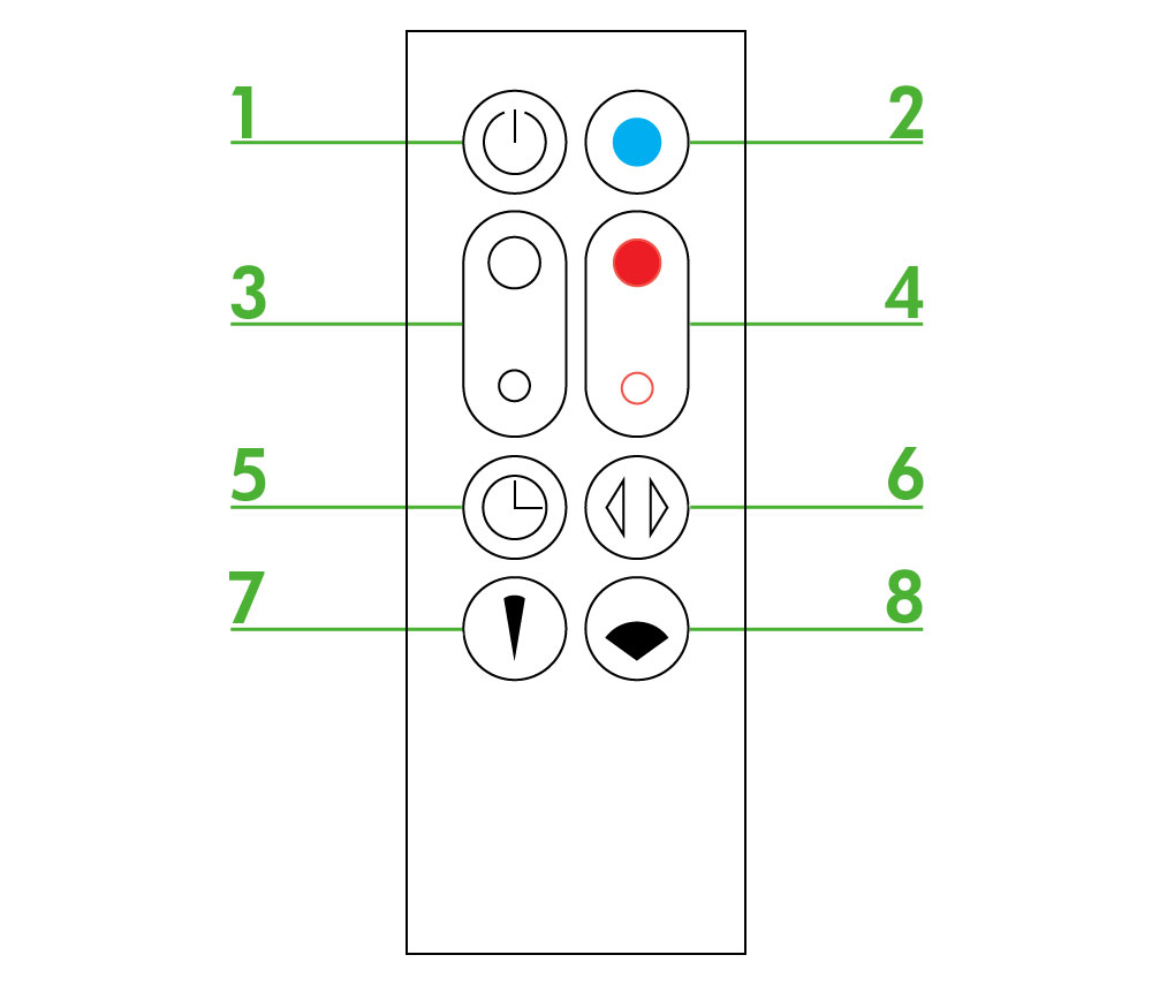
Most Dyson Cool fans have an oscillation button directly on the machine—typically marked with a circular arrow icon. A quick press activates the default oscillation pattern (usually 90°), while subsequent presses cycle through available angles. Higher-end models display the current oscillation range on their digital screens. Critical tip: Some models require you to press and hold the oscillation button for two seconds to activate rotation, especially after initial setup or power cycling. If your fan doesn’t respond immediately, try holding the button slightly longer before concluding there’s a problem.
Setting Custom Oscillation Angles
Advanced Dyson models let you customize exactly how far your fan rotates. While basic oscillation covers a standard range, you can narrow or widen this arc to match your room layout:
– 45° rotation: Perfect for cooling a single person at a desk without disturbing papers
– 90° rotation: Ideal for covering a standard sofa or bed area
– 180° rotation: Best for long, narrow rooms like hallways or offices
– 350° rotation: Maximizes coverage in open-plan living spaces
To set these angles without the remote, some models allow you to manually rotate the fan head to your desired starting and ending points before activating oscillation—essentially “teaching” the fan its new range.
Using the Dyson Remote Control to Start Fan Rotation
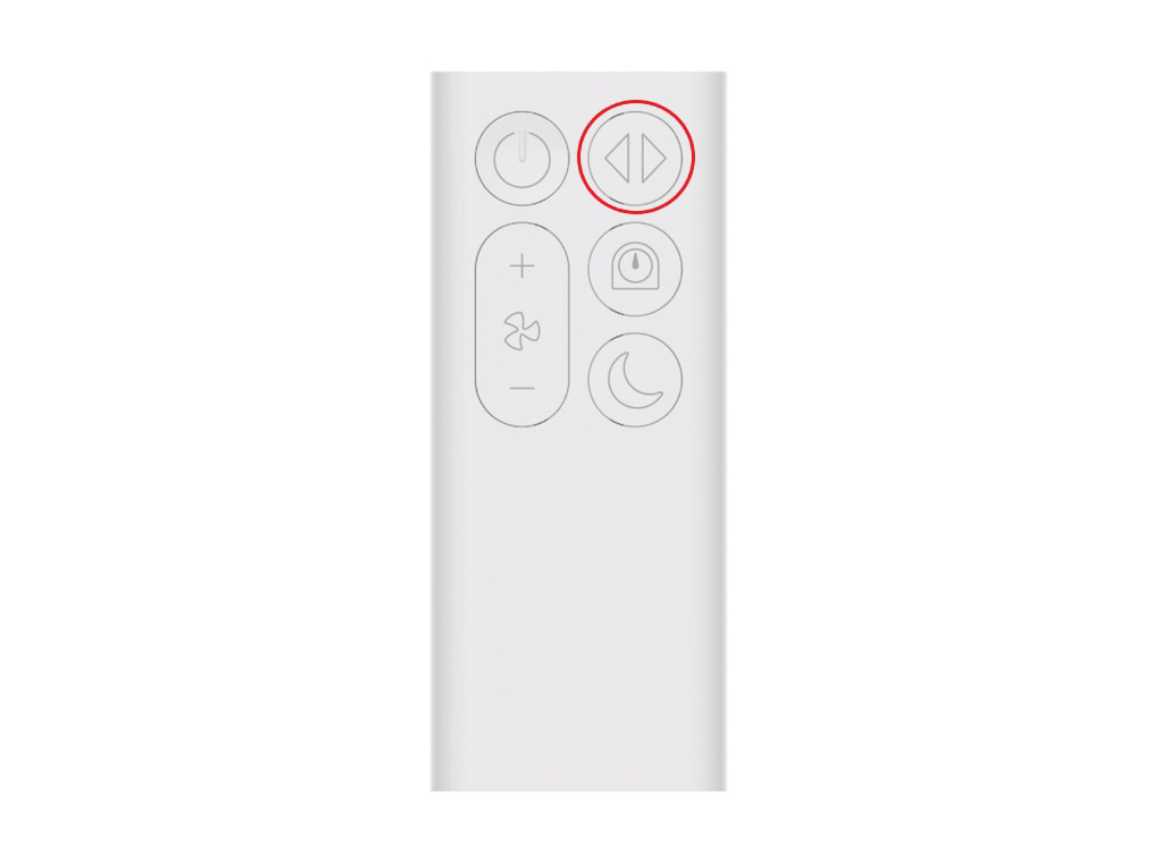
The magnetic remote control that ships with your Dyson Cool fan attaches neatly to the top of the unit when not in use. This remote provides the most comprehensive control over rotation settings without requiring your smartphone.
Mastering the Oscillation Button
The remote’s oscillation button (featuring a curved arrow icon) works differently than the physical button on the fan. A single press starts oscillation at the last-used angle, while a second press stops rotation at the current position. Pro tip: Press and hold this button for 3 seconds to cycle through available oscillation ranges—each press changes the angle incrementally until you find the perfect coverage for your space. If your remote isn’t responding, check for dead batteries or clean the contacts with a dry cloth, as dust buildup often causes communication issues.
Combining Rotation with Other Settings
For optimal performance, adjust fan speed simultaneously with oscillation settings. Lower speeds (1-3) work best with narrow oscillation angles for personal cooling, while higher speeds (7-10) pair well with wide-angle rotation for whole-room air purification. The remote’s “Auto” button takes this further—when activated with oscillation, your Dyson automatically adjusts both speed and rotation based on real-time air quality readings, focusing more air movement where pollutants are detected.
Troubleshooting: Why Your Dyson Fan Won’t Rotate
When your Dyson Cool fan refuses to rotate despite following all instructions, several common issues could be at play—most easily resolved without professional help.
Checking for Physical Obstructions
First step: Power off your fan and inspect the base mechanism. Even small objects like toys, cords, or pet hair can jam the rotation assembly. Gently rotate the fan head manually—if you feel resistance, carefully remove any debris blocking the path. Ensure the fan sits on a level surface, as uneven placement can cause the rotation motor to disengage as a safety precaution.
Resetting the Rotation Mechanism
If your Dyson still won’t rotate after clearing obstructions:
1. Unplug the fan for 30 seconds
2. Press and hold the power button for 10 seconds
3. Plug back in and attempt oscillation again
This simple reset clears temporary electronic glitches affecting the rotation motor. If problems persist, check for firmware updates through the Dyson Link app, as manufacturers frequently release updates that resolve rotation issues.
Controlling Fan Rotation via Dyson Link App
For ultimate convenience, the Dyson Link app transforms your smartphone into a powerful control center for your fan’s rotation patterns—especially valuable when you’re away from home or settled comfortably on the couch.
Setting Automated Rotation Schedules
Create custom oscillation schedules that match your daily routine:
– Program 350° rotation during daytime hours for maximum air purification
– Switch to 90° oscillation at bedtime to gently circulate air over your sleeping area
– Schedule automatic shutdown after you fall asleep to conserve energy
Time-saving shortcut: Use the app’s “Good Night” mode, which gradually reduces oscillation range and fan speed over 30 minutes as you drift off to sleep.
Voice Control for Hands-Free Rotation
After linking your Dyson to Alexa or Google Assistant, control rotation with simple voice commands:
– “Alexa, set Dyson oscillation to 180 degrees”
– “Hey Google, make the fan rotate slowly”
– “Alexa, stop the fan from rotating”
This feature proves invaluable when your hands are full or you’re unable to reach the remote. Voice commands work even when you’re not at home, allowing you to prepare your space before arrival.
Maintaining Smooth Fan Rotation Long-Term
Regular maintenance prevents the jerky movement and uneven rotation that plagues neglected Dyson fans. Unlike traditional fans with exposed blades, Dyson’s Air Multiplier technology requires different care to keep rotation smooth.
Monthly Rotation Maintenance Routine
- Clean the rotation track: Wipe the circular path where the fan head moves with a dry microfiber cloth to remove dust buildup
- Check for balance: Run the fan at medium speed without oscillation—if you notice vibration, clean the internal filters
- Verify clearance: Ensure 12 inches of space behind the fan where the motor housing rotates
Critical warning: Never apply lubricants to the rotation mechanism—Dyson’s sealed bearings require no additional oiling, and foreign substances can damage the precision components.
Seasonal Deep Maintenance
Before summer’s peak heat or winter heating season:
– Remove and wash all filters according to manufacturer instructions
– Inspect the base for hair or string缠绕 that might restrict movement
– Update the fan’s firmware through the Dyson Link app for optimal rotation performance
This 15-minute annual maintenance session prevents 90% of rotation problems and extends your fan’s lifespan significantly.
Optimizing Rotation for Different Room Layouts

Your room’s shape and furniture arrangement dramatically impact how you should configure your Dyson Cool fan’s rotation. The right settings transform your fan from a simple appliance into an intelligent climate control system.
Small Rooms and Home Offices
In compact spaces under 150 square feet:
– Use 45-90° oscillation to prevent drafts from hitting you directly
– Position the fan in a corner to maximize air circulation
– Set lower fan speeds (2-4) with narrow oscillation for gentle, consistent airflow
This configuration creates a comfortable microclimate without the “wind tunnel” effect common with stationary fans.
Large Living Areas and Open Floor Plans
For spaces over 300 square feet:
– Activate 350° rotation for complete coverage
– Place the fan near the room’s center rather than against walls
– Use Auto mode with oscillation to let the fan respond to air quality variations
Pro tip: If your room has distinct zones (like kitchen and living areas), program different oscillation patterns for different times of day using the Dyson Link app—wider rotation during cooking hours when air quality fluctuates more.
By mastering these rotation techniques, you transform your Dyson Cool fan from a simple appliance into a personalized climate solution. Whether you need targeted cooling for your workstation or whole-room purification during allergy season, precise control over your fan’s movement ensures maximum comfort and efficiency. Remember to incorporate regular maintenance into your routine—just 10 minutes monthly prevents most rotation issues and keeps your Dyson performing like new for years. With these methods, you’ll never wonder how to make a Dyson Cool fan rotate again; instead, you’ll effortlessly customize your airflow to match any situation.

