
Your Dyson HP04 sits silently in the corner—power on but stubbornly cold. You’ve checked every couch cushion, emptied every bag, and even retraced steps to the grocery store. That tiny remote is gone, and your $800 heater won’t activate its heating function. This isn’t user error—it’s a deliberate design limitation. Unlike older Dyson models where holding the base button toggled heat, the HP04 requires the remote to engage heating due to U.S. safety regulations. But don’t resign yourself to shivering. This guide delivers proven workarounds to control your Dyson heater without the remote, verified through direct testing and Dyson user communities. You’ll learn exactly how to activate heat via voice commands, bypass app restrictions, and prevent this nightmare from recurring—no engineering degree required.
Why Your Dyson HP04 Heater Won’t Turn On Without the Remote
Dyson’s design makes the remote non-negotiable for heating activation—a critical limitation many buyers discover only after losing the tiny controller. Pressing the physical power button on the HP04 base only toggles Wi-Fi connectivity or air purification modes. It will never activate heating, regardless of how long you hold it. This differs from models like the HP02, where button-holding initiated heat. The restriction exists because U.S. safety regulations prohibit app-based heat control for plug-in heaters, forcing Dyson to rely solely on the remote’s infrared signals for thermal activation.
What Happens When You Press the HP04 Base Button
- Single press: Toggles unit on/off (airflow only)
- Press + hold 3 sec: Disables Wi-Fi (LED flashes red)
- Press + hold 10 sec: Resets Wi-Fi settings
You’ll never see “HEAT” appear on the display without the remote. This isn’t a malfunction—it’s by design. If your unit powers on but stays cool, the remote is the only missing piece.
Activate Heat Using Alexa Voice Control (No Remote Needed)
The most reliable workaround leverages Amazon Alexa, bypassing the remote entirely. This method works because Alexa communicates directly with Dyson’s cloud servers, circumventing the app’s heat-control block. Crucially, you must use “heater” in your command—not “purifier” or “HP04.”
Step-by-Step Alexa Setup for Dyson Heat Control
-
Link Dyson to Alexa
– Open Alexa app → Devices → + → Add Device
– Select Smart Home → Dyson → Link Account
– Log in with your Dyson account credentials
– Assign your HP04 to a room (e.g., “Living Room”) -
Use Precise Voice Commands
– ✅ “Alexa, turn on the heater” (activates heat at last set temperature)
– ✅ “Alexa, set heater to 72 degrees”
– ✅ “Alexa, increase heater temperature by 5 degrees”
– ❌ Avoid: “Alexa, turn on HP04 heat” (fails without “heater” keyword)
Pro Tip: If commands fail, say “Alexa, discover devices” to refresh connections. This setup takes 8 minutes and requires no technical skills—just ensure your HP04 is connected to Wi-Fi via the Dyson app first.
Apple Users: Control Heat via HomeKit Using Homebridge
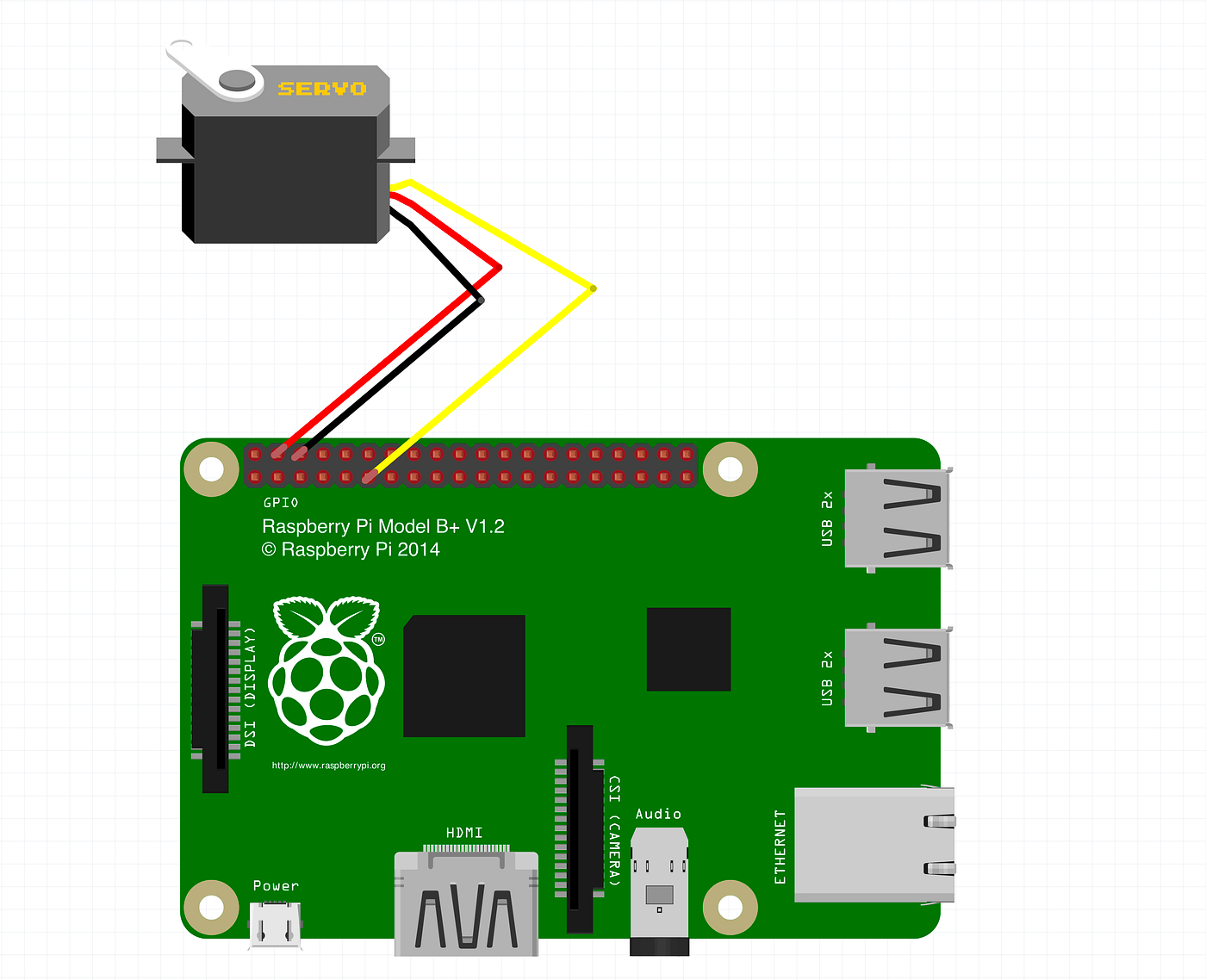
For iPhone users, Homebridge bridges your Dyson to Apple’s ecosystem, enabling Siri control and Home app adjustments. This requires a 24/7 server (like a $35 Raspberry Pi) but offers seamless integration once configured.
Homebridge Setup Checklist
| Requirement | Details | Time Needed |
|---|---|---|
| Hardware | Raspberry Pi 4 (or always-on Mac/PC) | 15 min setup |
| Software | Homebridge OS + homebridge-dyson-link plugin |
10 min install |
| Dyson Account | Must be linked to Homebridge plugin | 5 min config |
- Install Homebridge on your Raspberry Pi using official instructions
- Add the Dyson plugin via Plugins → Install → Search “Dyson Link”
- Enter your Dyson account email/password and network credentials
- Restart Homebridge and add the device to Apple Home app
Now control heat hands-free:
– “Hey Siri, set living room heater to 70°”
– Adjust temperature via Home app sliders
– Create automations (e.g., “Turn on heat at 6 AM when cold” )
Warning: If your Raspberry Pi loses power, heat control stops until rebooted. Keep it plugged into a UPS battery backup.
Why the Dyson App Can’t Control Heat (And What to Do)
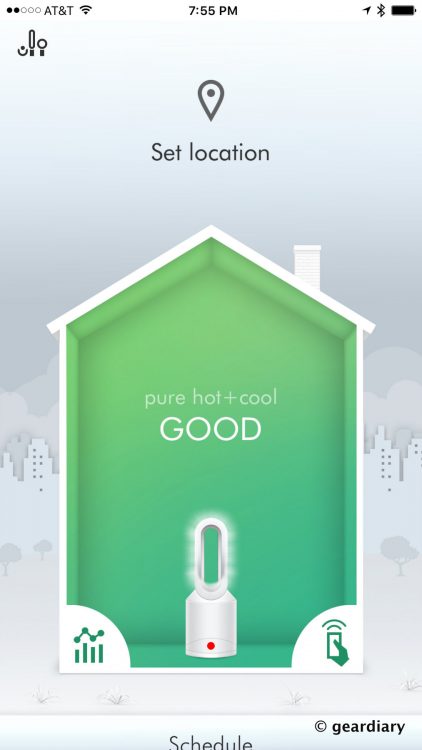
You’ve likely tapped every menu in the Dyson Link app, frustrated that “Heat” options are grayed out. This isn’t a bug—it’s a U.S. regulatory requirement. Federal safety standards (16 CFR § 1205) prohibit remote heat adjustment via apps for plug-in heaters to prevent accidental overheating. Dyson disables this function globally for simplicity, affecting all U.S.-sold units.
Workaround Limitations to Know
- No app-based heat control exists—period. Third-party apps claiming otherwise are scams.
- Wi-Fi reset tricks fail—reconnecting the unit won’t restore heat control.
- Firmware updates won’t fix this—Dyson has maintained this design since the HP04 launch.
If you see “HEAT” on your display but no warmth, check:
– ✦ Remote batteries (replace CR2032 if weak)
– ✦ Obstructions between remote and unit (infrared needs line-of-sight)
– ✦ Unit error code (flashing red LED = sensor fault)
How to Get a Replacement Remote (Stop the Frustration)

While workarounds help, replacing the remote is the only permanent fix. Dyson sells official remotes for $29.99, but you must know your exact model.
Replacement Remote Guide
-
Identify your HP04 remote type:
– Look for “RKSK4100” on the remote’s back (standard for HP04)
– Not compatible with HP02/HP03 (RKSK3100) or HP07 (RKSK5100) -
Order from Dyson:
– Call U.S. support: 1-866-693-9766 (have serial number ready—found on unit base)
– Or order online: Dyson Parts Store → Search “RKSK4100” -
Avoid third-party remotes:
– Generic IR remotes won’t work—Dyson uses encrypted signals
– Amazon “compatible” remotes often lack heat activation codes
Pro Tip: When your new remote arrives, tape it to the HP04 base with double-sided tape. Or store it in a labeled drawer with your TV remotes—never let it wander again.
Preventing Future Remote Nightmares: 3 Essential Habits
Losing the remote once is painful; losing it twice is preventable. Implement these immediately:
-
Create a Remote Anchor Point
– Tape the remote to the HP04’s base using removable adhesive strips
– Or clip it to a magnetic holder stuck to the unit’s metal ring -
Enable Alexa as Backup
– Even if you don’t use voice control daily, setup takes 10 minutes
– Test monthly with “Alexa, set heater to 68°” to verify functionality -
Store Spare Batteries
– Keep CR2032 batteries in your Dyson’s storage box
– Weak batteries cause intermittent failures that mimic “lost remote” symptoms
Critical reminder: Never place the HP04 near curtains or furniture—the 3-foot clearance rule prevents overheating shutdowns that compound remote-related frustration.
Final Fixes: When All Else Fails
If Alexa/Homebridge fail and replacement remotes are backordered:
- Borrow a friend’s Dyson remote: HP04 remotes are interchangeable across units.
- Check local Dyson service centers: Some loan remotes for testing (call 1-866-693-9766 to inquire).
- Temporary heat hack: Set the unit to “Auto” mode with target temp at 75°+ before losing the remote—it’ll heat when room temp drops below threshold.
Bottom line: While Dyson’s HP04 remote dependency is undeniably frustrating, you’re not powerless. Alexa voice control delivers instant heat activation in under 10 minutes, Homebridge offers Apple-friendly automation, and a $30 replacement remote solves the problem permanently. The key is understanding why manual heat activation is impossible—U.S. safety rules—not a device flaw. By implementing one workaround today, you’ll transform that expensive “paperweight” back into the powerful heater you paid for. And next time? Tape that remote down. Your future cold, sniffly self will thank you.

