
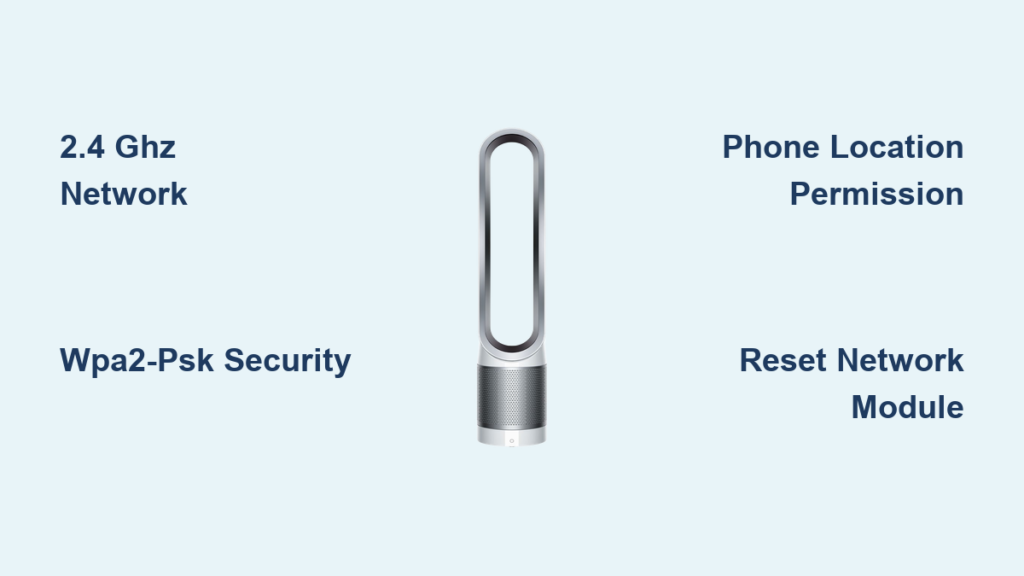
Your Dyson TP02 air purifier should seamlessly connect to your home network, but when it refuses to pair with Wi-Fi, you’re left manually adjusting settings instead of enjoying smart home convenience. This frustrating issue affects many TP02 owners despite correct passwords and network settings. The problem typically stems from your router configuration, mobile device settings, or specific quirks in the Dyson app’s connection process. Don’t worry—this comprehensive guide walks you through proven solutions that have resolved Wi-Fi connection problems for thousands of TP02 owners.
Confirm Your Router Broadcasts a 2.4 GHz Network
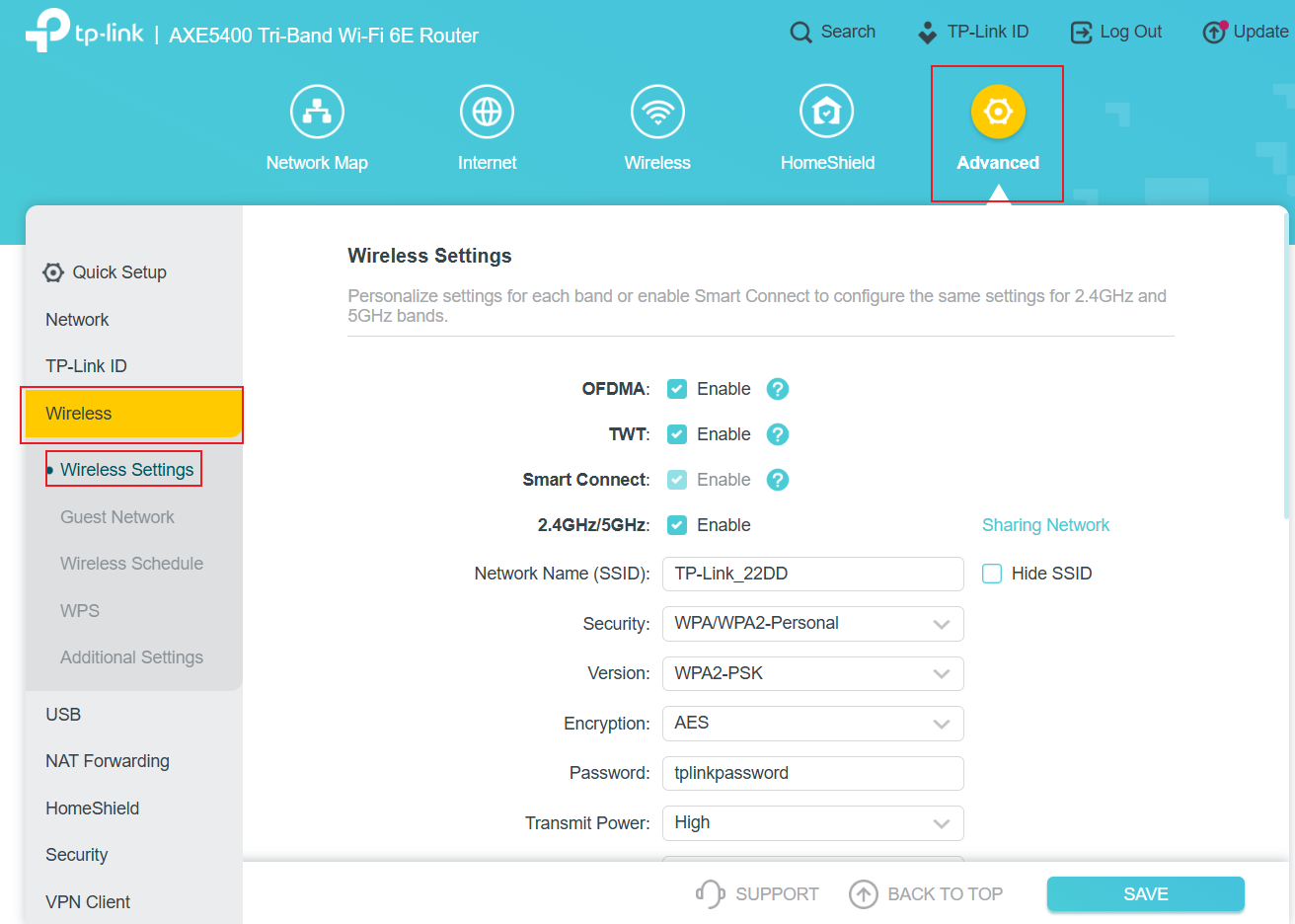
Your Dyson TP02 only connects to 2.4 GHz Wi-Fi networks—this isn’t a software limitation but a hardware requirement. Many modern dual-band routers broadcast a single network name for both 2.4 GHz and 5 GHz bands, which confuses the TP02 during setup.
Check your router settings to verify a dedicated 2.4 GHz network exists. Log into your router’s admin panel (typically at 192.168.1.1) and look for wireless settings. If your router combines both bands under one SSID, create separate network names—one ending in “_2G” for clarity. During setup, connect both your phone and TP02 to this dedicated 2.4 GHz network.
Why Your TP02 Can’t See Your Wi-Fi Network
Many users miss this critical detail: your TP02 requires WPA2-PSK (AES) security. If your router uses WPA3 or mixed security modes, the connection fails. Navigate to your router’s wireless security settings and ensure it’s set to WPA2-PSK with AES encryption only—not TKIP. The TP02’s older Wi-Fi chipset simply doesn’t support newer security protocols.
Fix Router Channel Congestion Issues
Overcrowded Wi-Fi channels cause connection failures even with correct settings. Use a free Wi-Fi analyzer app on your phone to check which channels nearby networks use. In your router settings, change your 2.4 GHz channel to 1, 6, or 11—the three non-overlapping channels that minimize interference. Most TP02 connection issues resolve when switching from congested channels to these standard options.
Prepare Your Phone for Successful TP02 Setup
Your smartphone must be correctly configured before attempting to connect your Dyson TP02. This preparation differs significantly between Android and iOS devices, and skipping these steps causes most “dyson tp02 not connecting to wifi” failures.
Android Setup Requirements
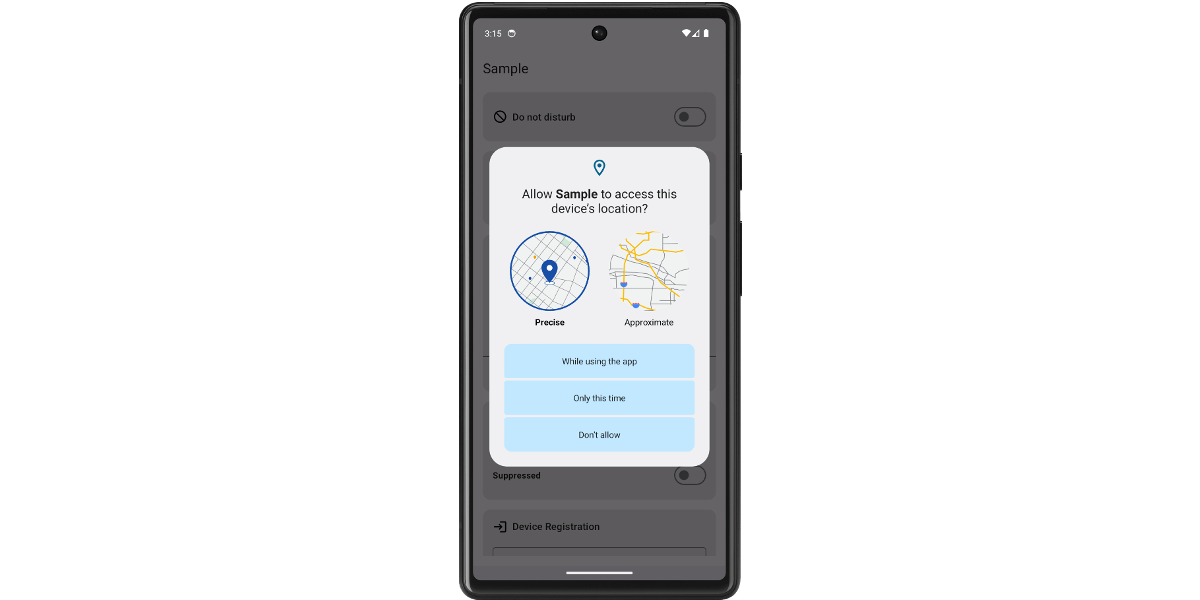
Android users must grant location permissions to the Dyson app—this isn’t optional but a technical requirement for network discovery. Go to Settings > Apps > MyDyson > Permissions and enable Location. Without this permission, Android blocks the app from scanning for Wi-Fi networks. Also disable battery optimization for the Dyson app to prevent it from being suspended during the critical connection phase.
iPhone-Specific Connection Fixes
iPhone users face a unique hurdle: iOS’s “Private Wi-Fi Address” feature randomizes your device’s MAC address, confusing the TP02. While the Dyson app is active, go to Settings > Wi-Fi, tap the (i) icon next to your network, and toggle “Private Wi-Fi Address” OFF. You’ll need to repeat this step each time you reconnect. Also disable “Limit IP Address Tracking” in the same menu for successful pairing.
Execute the Precise Connection Sequence for TP02
The exact sequence of network switching determines success or failure. Many users fail because they don’t follow these platform-specific steps precisely.
Android Connection Protocol
- Connect your Android phone to your 2.4 GHz home network
- Open the MyDyson app and select “Add Device”
- When prompted, allow your phone to switch to the Dyson-XXXX network
- If Android warns “No Internet,” tap “Keep Connected”
- Return to the MyDyson app to complete setup
Critical Pro Tip: Don’t dismiss the network switch notification—this is when the handshake occurs. If you ignore it, the connection fails immediately.
iPhone Connection Protocol
- Disable Private Wi-Fi Address as described earlier
- Launch MyDyson app and start device setup
- When your iPhone asks to join “Dyson-XXXX,” tap “Join”
- Immediately return to the MyDyson app (don’t check other apps)
- Select your home network and enter password when prompted
Common Mistake: iPhone users often wait too long between steps. The connection window is only 30-60 seconds—work quickly but deliberately.
Troubleshoot Failed Network Handoffs
When the app fails to transfer credentials to your TP02, try these specific fixes:
- Reset the TP02’s network module: Press and hold both the Power and Night Mode buttons for 10 seconds until the ring flashes white
- Restart your phone’s Wi-Fi: Toggle airplane mode on/off to refresh network connections
- Position devices closer: Place your phone within 3 feet of the TP02 during setup
If the light ring pulses white but setup still fails, unplug the TP02 for 10 minutes—this clears temporary memory that may be causing conflicts.
Implement Advanced Fixes for Stubborn Connection Failures
When standard methods fail, these advanced solutions address deeper network conflicts.
Create a Dedicated Setup Hotspot
Your home router may have security features blocking the connection. Instead:
- Enable your phone’s mobile hotspot with SSID “Dyson”
- Set hotspot security to WPA2-PSK (AES)
- Connect TP02 to this hotspot using the standard procedure
- Once connected, use the MyDyson app to switch to your home network
This bypasses router security features like client isolation that prevent device communication.
Modify Router Security Settings Temporarily
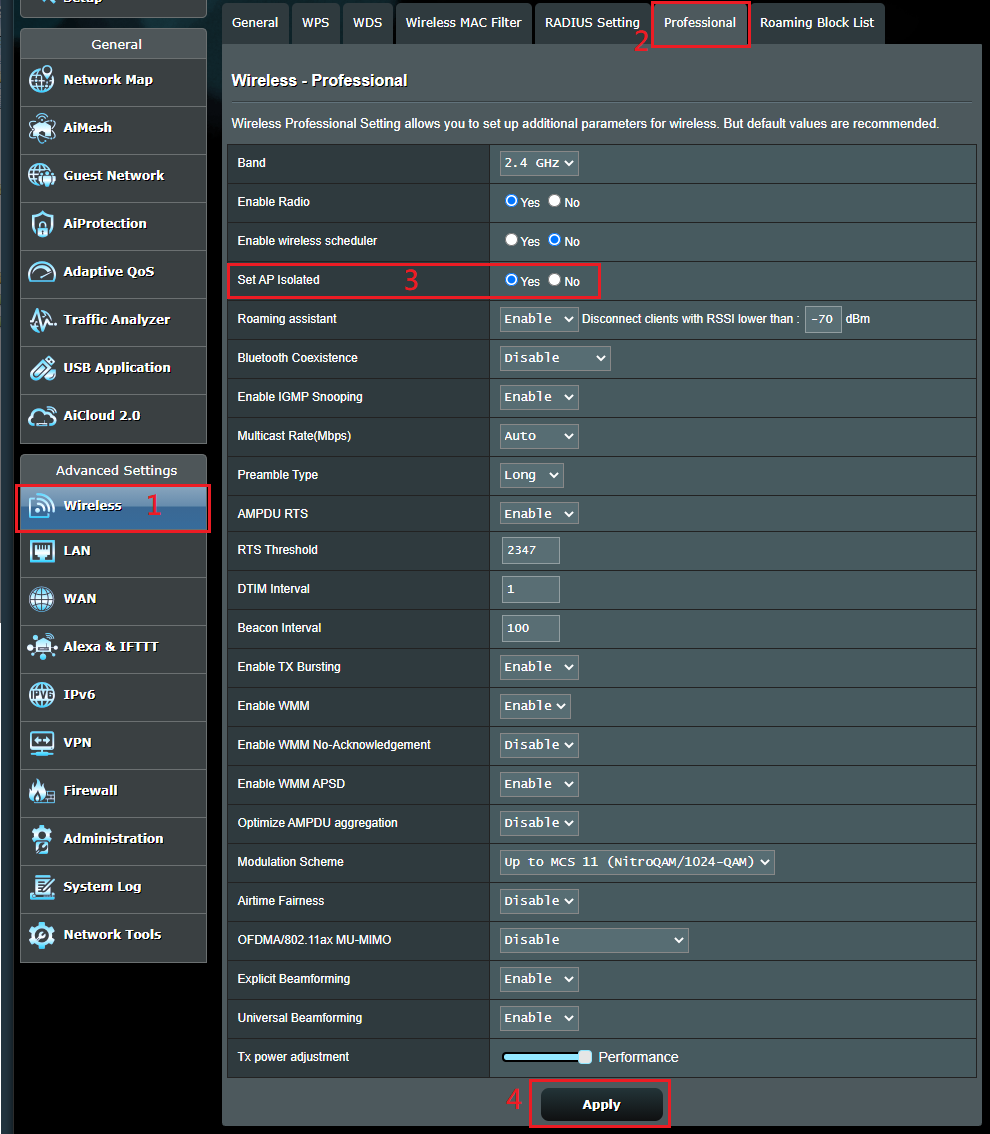
Some ISP-provided routers have “AP Isolation” enabled by default, which blocks communication between devices on the same network. Log into your router settings and:
- Disable AP Isolation or Client Isolation
- Turn off Band Steering features
- Temporarily lower security to WPA2-PSK only
- Disable Intrusion Prevention Systems during setup
Remember to re-enable these security features after successful TP02 connection.
When All Else Fails: Last Resort Solutions
If your dyson tp02 not connecting to wifi issue persists after trying all previous steps, these final options often succeed.
Perform a Complete Factory Reset
The TP02 requires a specific reset sequence that many users perform incorrectly:
- Unplug the TP02 from power
- Press and hold the Power button
- While holding, plug the device back in
- Continue holding for 10 seconds after power restoration
- Release when the light ring pulses white
Wait 2 minutes for the device to fully reboot before attempting setup again. This clears corrupted network data that standard resets miss.
Contact Dyson Support with Critical Information
When reaching out to Dyson, provide these specific details for faster resolution:
- Your router make/model and firmware version
- Screenshots of your wireless security settings
- The exact error message from the app
- Whether you’ve tried the mobile hotspot method
Dyson technicians can often identify router-specific issues and may provide firmware updates for problematic models. Mention you’ve already performed a factory reset and verified 2.4 GHz compatibility.
Maintain Reliable Wi-Fi Connection Long-Term
Prevent future “dyson tp02 not connecting to wifi” issues with these maintenance practices:
- Assign a static IP address to your TP02 in router settings
- Reboot your router monthly to clear connection tables
- Keep router firmware updated—manufacturers frequently fix compatibility issues
- Position the TP02 away from Bluetooth devices and microwaves that cause 2.4 GHz interference
If your connection drops periodically, check signal strength at the TP02’s location using a Wi-Fi analyzer app. The device requires at least -70 dBm signal strength for reliable operation—move it closer to your router if readings are weaker.
Your Dyson TP02 should now connect reliably to your home network using these proven methods. Remember that manual controls still function perfectly without Wi-Fi, so you’re never without air purification. If you’ve followed all steps and still experience connection problems, Dyson may need to replace the Wi-Fi module under warranty—document your troubleshooting efforts for faster service. With these fixes implemented, you’ll regain smart control of your air quality and enjoy the full benefits of your TP02 investment.

