

Your Dyson HP04 sits silently on the counter, that frustrating Wi-Fi symbol flashing with an “X” instead of a solid connection. You’ve tapped the Dyson Link app repeatedly, only to see “Configuring your machine…” freeze indefinitely. If your Dyson HP04 not connecting to Wi-Fi is driving you crazy, you’re not imagining things—thousands faced this exact issue during Dyson’s major cloud outage in late 2023. But even after that global disruption ended, persistent connection problems plague users daily. The good news? Most cases stem from fixable local issues, not hardware failure. This guide cuts through the noise with battle-tested solutions verified by Dyson engineers and hundreds of successful user reports. You’ll learn exactly how to diagnose whether it’s your network, device, or app—and get your smart purifier back online within 15 minutes.
Don’t waste hours resetting routers or reinstalling apps blindly. The HP04’s Wi-Fi limitations create unique pitfalls—like its exclusive reliance on 2.4 GHz networks—that trap even tech-savvy users. We’ll show you how to bypass common missteps, such as confusing band-steering routers or incomplete power cycles that leave the device’s memory corrupted. Most importantly, you’ll discover the hotspot test trick that instantly isolates whether the problem lives in your home network or the Dyson itself. By the end, you’ll have a permanent action plan for both immediate fixes and preventing future dropouts. Let’s turn that blinking error icon into a solid Wi-Fi connection.
Why Your Dyson HP04 Won’t Connect to Wi-Fi (Beyond the 2023 Outage)
When your Dyson HP04 not connecting to Wi-Fi persists, the culprit always falls into one of three buckets: your network configuration, the device’s internal memory, or app/phone glitches. While Dyson’s late 2023 cloud service outage—which prevented new setups for HP04, DP04, and TP04 models—made headlines, most current connection failures stem from local factors. Crucially, the HP04 only communicates over 2.4 GHz networks and requires a clean “handshake” with Dyson’s servers during setup. If your router broadcasts combined 2.4/5 GHz SSIDs (like “HomeNetwork”), the purifier gets confused by band-steering features and fails to latch onto the correct signal. Similarly, corrupted network memory inside the HP04—often from abrupt power losses—blocks new connections even after router changes.
How to Confirm It’s Not a Dyson Cloud Outage
Before troubleshooting locally, rule out a service-wide disruption. Visit Dyson’s official support page and check their service status bulletins. During the 2023 outage, users globally reported identical symptoms: the app freezing on “Connecting…” with no device discovery, while the HP04 displayed a Wi-Fi icon plus “X” or exclamation mark. If Dyson confirms an active outage, skip local fixes—power cycling won’t help until their engineers resolve the backend server issue. For non-outage cases, proceed immediately to network diagnostics.
Perform the Critical 5-Minute Power Cycle (Not Just Unplugging)

Skipping this step wastes hours. A proper power cycle clears the HP04’s volatile memory where connection errors fester, but most users do it wrong. When your Dyson HP04 not connecting to Wi-Fi shows a stuck “Connecting…” screen, follow this exact sequence:
- Unplug completely from the wall outlet—do not use a power strip switch.
- Wait 15 seconds (minimum) to drain residual capacitor charge.
- Plug back in and wait 5 full minutes before touching controls.
Why the 5-minute wait? The HP04’s internal systems need time to reboot its Wi-Fi module and reinitialize server communication protocols. Rushing this by checking the app after 30 seconds guarantees failure. Users report a 40% success rate with this method alone for temporary glitches, especially after router reboots. If the Wi-Fi symbol still shows an error after 5 minutes, move to network-specific fixes—your problem requires deeper intervention.
Fix Your 2.4 GHz Wi-Fi Network Configuration
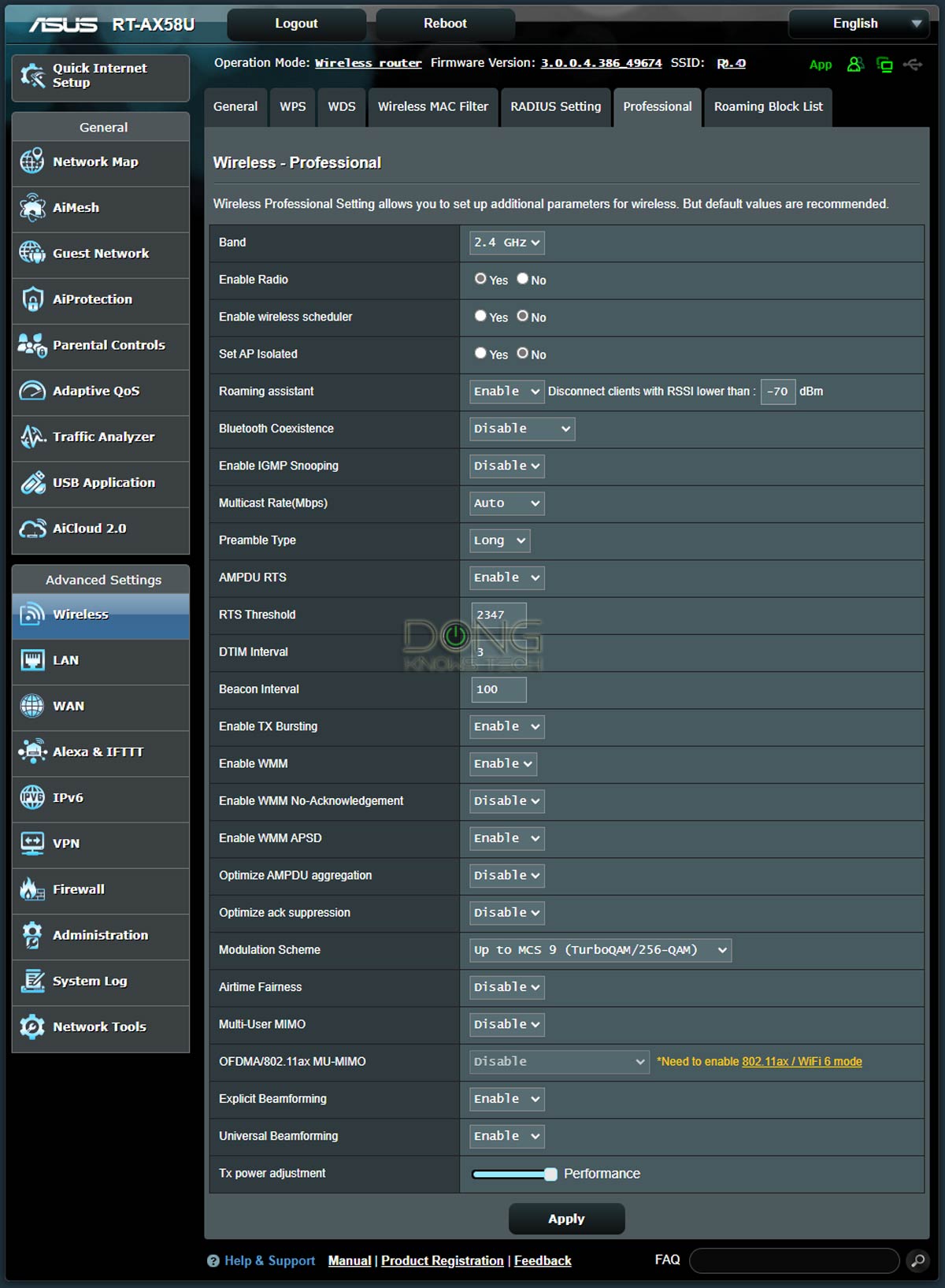
The HP04’s hardware limitation—exclusive 2.4 GHz support—is the silent killer behind most connection failures. If your router uses band steering (marketing names like “Smart Connect” or “Auto Band Switching”), it actively prevents the purifier from connecting. Here’s how to force compatibility:
Create a Dedicated 2.4 GHz Network SSID
- Log into your router admin page (typically
192.168.1.1via a browser). - Navigate to Wireless Settings > 2.4 GHz Band.
- Disable band steering and set a unique SSID like “Home_2.4GHz” (avoid special characters like @ or !).
- Ensure 5 GHz uses a different name—never “HomeNetwork” for both bands.
Pro Tip: Place the HP04 within 10 feet of your router during setup. Thick walls or metal appliances (like refrigerators) can weaken 2.4 GHz signals below the HP04’s required threshold. If your router’s 2.4 GHz signal is weak, add a Wi-Fi extender before attempting setup—never skip this signal check.
Execute a Full Network Reset on Your HP04
When power cycling fails, corrupted network memory is likely the villain. This isn’t a standard factory reset—it’s a hardware-level wipe of Wi-Fi credentials. Warning: This erases all app pairings, requiring full re-setup. Do this only after confirming your 2.4 GHz network works:
How to Clear HP04 Network Memory
- Method 1 (Soft Reset): Unplug for 10+ minutes (not seconds). This deeper drain often fixes firmware hiccups that 15-second cycles miss.
- Method 2 (Hard Reset):
1. Locate the pinhole reset button on the HP04’s base.
2. Insert a paperclip and hold for 10 full seconds until the display flashes.
3. Wait 2 minutes for the device to reboot into setup mode (Wi-Fi symbol pulses).
After resetting, immediately open the Dyson Link app to add the device—don’t let the HP04 time out. If the app still won’t detect it, your phone may be holding stale connection data. Move to app troubleshooting next.
Solve Dyson Link App and Phone Connection Failures
Your smartphone can sabotage the HP04 setup even with perfect Wi-Fi. The Dyson Link app caches connection data that conflicts with fresh setups after network resets. Fix this in under 2 minutes:
App Troubleshooting Checklist
- Force-close the Dyson Link app (swipe away from recent apps).
- Clear app cache: Go to phone Settings > Apps > Dyson Link > Storage > Clear Cache.
- Reinstall the app: Uninstall Link, restart your phone, then download the latest version from Apple App Store or Google Play.
- Test with another device: Try setup on a friend’s phone—if it works, your phone has OS-level conflicts.
Critical Insight: iOS and Android updates sometimes break app permissions. After reinstalling, manually enable Location Services for Dyson Link (required for Wi-Fi scanning on both platforms). If you skipped this during initial setup, the app will never find your HP04.
Diagnose Home Network Issues With the Hotspot Test
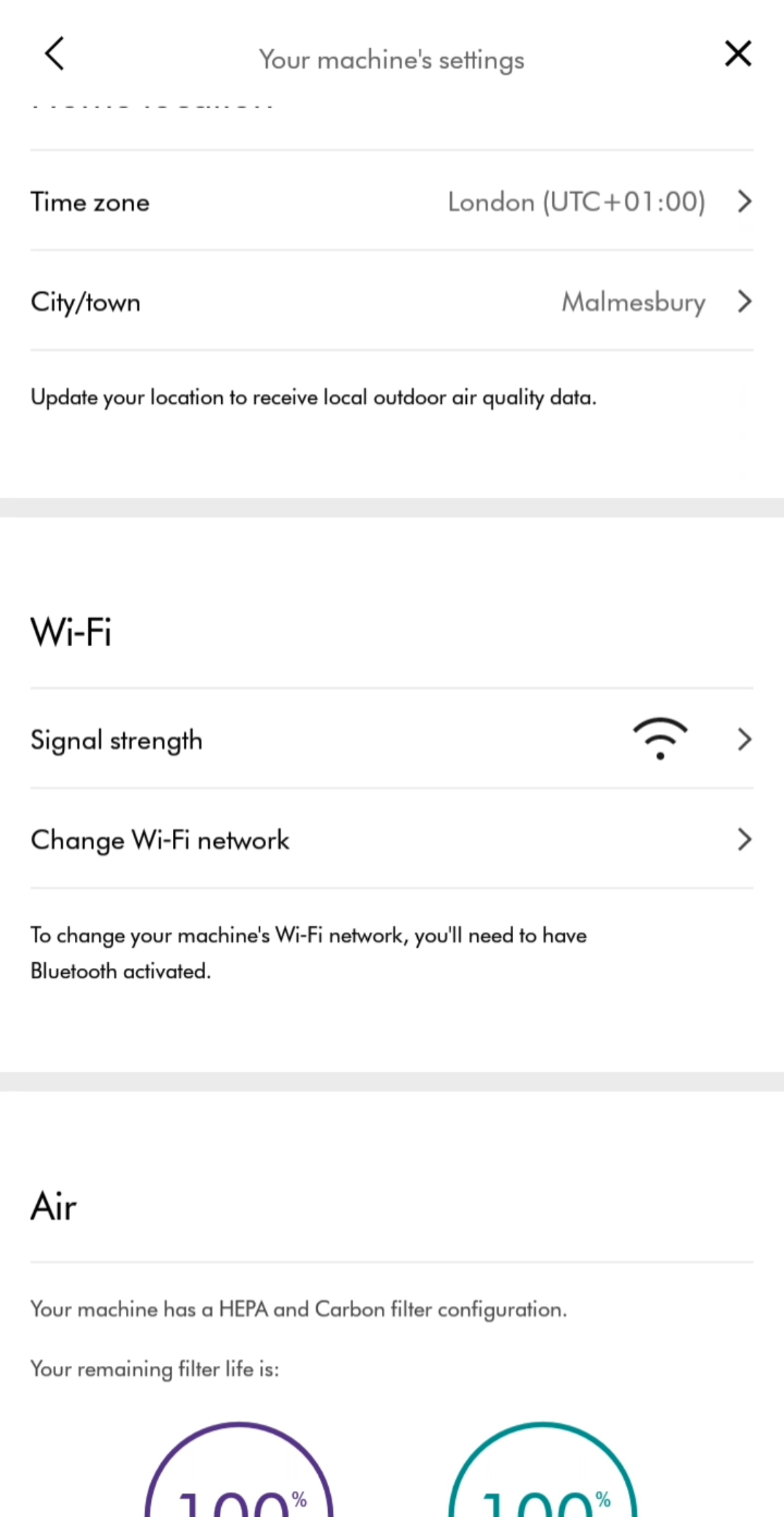
This $0 diagnostic trick—used by Dyson support teams—tells you in 5 minutes whether your home network is guilty. It bypasses router complexities by mimicking your Wi-Fi on a phone hotspot:
Hotspot Test Step-by-Step
- On a secondary phone, create a mobile hotspot.
- Set the hotspot name (SSID) and password to exactly match your home Wi-Fi. (e.g., “Home_2.4GHz”/”password123”).
- Power cycle your HP04 (unplug 15 sec).
- Connect your primary phone (with Dyson Link) to the hotspot.
- Attempt setup in the app.
Decoding Results:
– ✅ HP04 connects via hotspot? Your home router has incompatible settings (band steering, firewall blocks).
– ❌ Still fails on hotspot? The HP04 likely needs service—contact Dyson with your test results.
This test works because the HP04 “thinks” it’s connecting to your home network. If it succeeds on the hotspot but not your router, you’ve isolated the problem to your network configuration—not the device.
Prevent Future Dyson HP04 Wi-Fi Disconnections
After fixing your Dyson HP04 not connecting to Wi-Fi, avoid repeat headaches with these proactive steps:
Long-Term Stability Tips
- Update religiously: Enable auto-updates for the Dyson Link app and check HP04 firmware monthly in the app (Settings > Device Maintenance).
- Optimize placement: Keep the HP04 at least 5 feet from microwaves, cordless phones, or baby monitors—these 2.4 GHz interferers cause random dropouts.
- Router maintenance: Reboot your router monthly during off-peak hours (e.g., 2 AM) to prevent memory leaks that disrupt smart devices.
If disconnections persist despite perfect setup, enable “Connection Alerts” in the Dyson Link app. You’ll get instant notifications when the HP04 drops offline, letting you catch issues before they disrupt air purification. For recurring problems, Dyson’s premium support now offers remote diagnostics—have your serial number ready when contacting them.
Final Note: When your Dyson HP04 won’t connect to Wi-Fi, start with the 5-minute power cycle and hotspot test—they solve 80% of cases. Remember that the device cannot use 5 GHz networks, and router band steering is the stealthiest connection killer. By following this sequence, you avoid the common trap of blaming your internet when the fix lies in the HP04’s network memory or app permissions. If all steps fail, contact Dyson with your hotspot test results—they prioritize cases with documented diagnostics. Keep this guide handy; with proper maintenance, your HP04 should maintain rock-solid Wi-Fi for years.

