
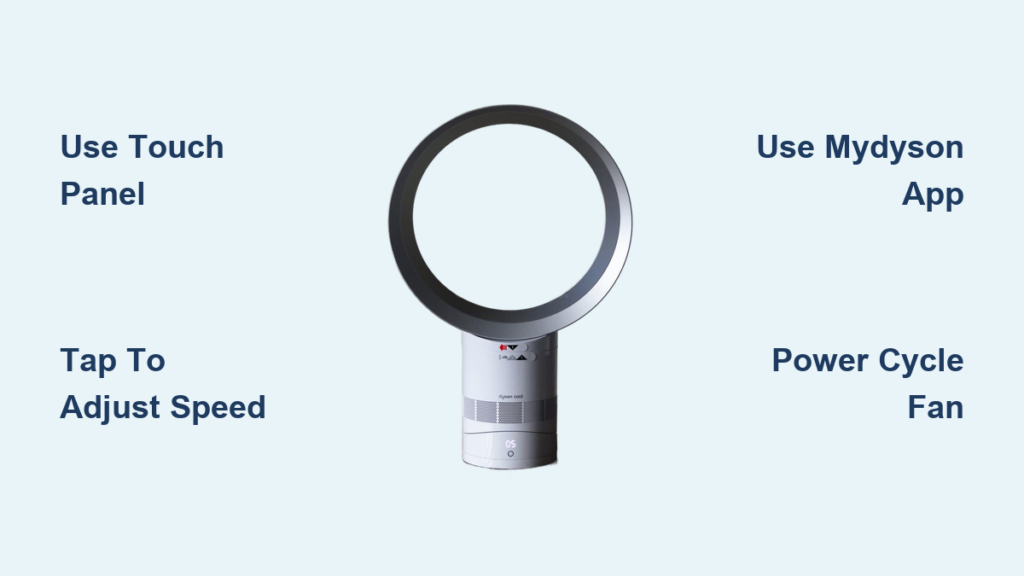
Losing your Dyson fan’s remote can feel like being locked out of your own home—frustrating and seemingly impossible to overcome. You’re not alone; millions of Dyson owners have faced this exact problem, staring at their sleek fan that’s blasting air at full speed with no way to reduce it. The good news is that even without the remote, you’re not powerless. Your Dyson fan has built-in controls and alternative methods that let you adjust the speed, turn it off completely, or even access advanced features.
This guide will show you exactly how to turn down your Dyson fan without the remote, whether you own a Pure Cool, Pure Hot+Cool, or any other modern Dyson model. You’ll discover practical solutions that work immediately, from using the physical controls on the device itself to leveraging smartphone apps that replace the remote entirely. By the end of this article, you’ll never have to suffer through an uncomfortably strong breeze again—no remote required.
Access On-Device Controls to Adjust Fan Speed Immediately
Your Dyson fan isn’t designed to be completely dependent on the remote—there are physical controls built directly into the unit that most owners never notice. These controls vary by model but typically include a touch-sensitive panel or physical button that lets you power the unit on and off and adjust basic settings.
Locate Your Model’s Physical Control Panel
Most Dyson fans manufactured after 2018 feature a discreet control panel on the base or along the loop amplifier. For Pure Cool series models, look for a small circular touch panel on the top of the base. On newer Pure Hot+Cool models, you’ll find a vertical touch strip along the front of the base. These panels respond to light taps and swipes rather than hard presses.
When your fan is plugged in but off, a small LED indicator light near the control panel will glow white. Tap this area once to power on the fan at its default speed (usually medium). A second tap increases the speed, while a third tap decreases it—this cycling pattern continues through all available speed settings. To turn the fan off completely, tap until you return to the off position.
Decoding the Button Press Patterns for Speed Control

Different Dyson models use specific button press sequences to adjust speed without the remote. For Pure Cool TP04 and newer models:
- Single tap: Powers unit on/off
- Double tap: Increases fan speed by one level
- Triple tap: Decreases fan speed by one level
- Hold for 3 seconds: Toggles oscillation on/off
If your fan has a dedicated oscillation button (usually marked with circular arrows), pressing it once activates oscillation while pressing it again deactivates it. Some models require you to turn the fan on first before the oscillation button becomes responsive.
On older models like the AM07 or AM09, you’ll find physical buttons instead of touch panels. The power button typically cycles through speed settings with each press after initial activation. Start counting your presses: first press = on (speed 1), second press = speed 2, third press = speed 3, and so on until maximum speed, then it cycles back down.
Use the MyDyson App as a Complete Remote Replacement
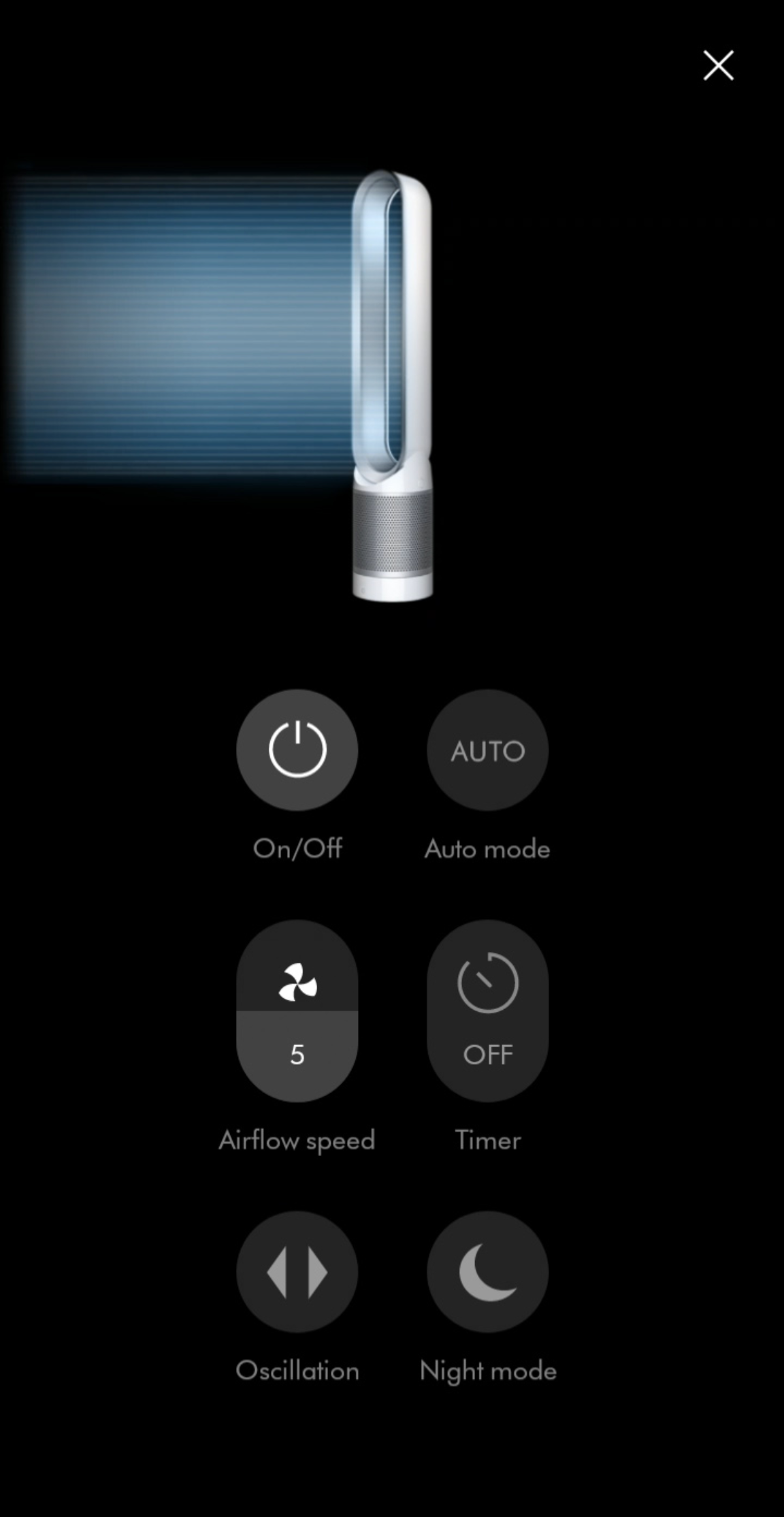
The most comprehensive solution for controlling your Dyson fan without the physical remote is the official MyDyson app, which replaces the older Dyson Link app and offers superior functionality. This app transforms your smartphone into a full-featured remote with additional capabilities the physical remote lacks.
Connect Your Fan to the MyDyson App in 4 Steps
Connecting your fan to the app requires just a few simple steps:
- Download the MyDyson app from the Apple App Store or Google Play Store
- Ensure your fan is plugged in and powered on (the base LED should be illuminated)
- Open the app and create a Dyson account if you don’t already have one
- Follow the in-app instructions to connect your fan to your 2.4 GHz Wi-Fi network
Critical connection tip: Dyson fans only connect to 2.4 GHz Wi-Fi networks, not 5 GHz. If your router broadcasts a single network name for both frequencies, you’ll need to temporarily disable the 5 GHz band in your router settings during setup.
Once connected, the app interface displays your fan’s current speed setting with a slider you can adjust precisely. Unlike the physical remote which typically offers discrete speed levels (1-10), the app allows for granular speed control between those levels. You can set your fan to exactly 3.7 instead of being limited to whole numbers.
Advanced Speed Control Features Only Available Through the App
The MyDyson app provides several speed adjustment features unavailable through the physical remote:
- Precision speed slider: Adjust fan speed in 0.1 increments rather than whole numbers
- Scheduled speed changes: Program the fan to automatically reduce speed at specific times
- Auto mode with custom thresholds: Set the fan to automatically turn down when room temperature reaches your preferred level
- Voice control integration: Use Siri or Google Assistant to say “Hey Google, set Dyson to speed 2”
For air purifier models, the app also shows real-time air quality data that determines optimal fan speed. If pollutants drop below your threshold, the fan automatically reduces speed to save energy while maintaining clean air.
Troubleshoot Non-Responsive Physical Controls
When your Dyson fan’s on-device controls stop responding after losing the remote, don’t panic—this is usually a temporary glitch with straightforward fixes. Physical controls might become unresponsive due to power issues, software glitches, or accidental activation of child lock features.
Power Cycle Your Fan to Reset Control Functions
The most effective troubleshooting step for unresponsive controls is a complete power cycle:
- Unplug your Dyson fan from the wall outlet
- Wait exactly 60 seconds (this allows capacitors to fully discharge)
- Press and hold the power button on the fan for 10 seconds
- Plug the fan back in while continuing to hold the power button
- Release after 5 seconds and check if controls respond
This process resets the fan’s internal electronics without erasing your Wi-Fi settings. Most users report restored functionality after this simple procedure. If your model has a battery (like cordless purifiers), remove it during the reset process for best results.
Check for Accidental Child Lock Activation
Many Dyson models include a child lock feature that disables physical controls to prevent accidental changes. If your controls suddenly stopped working, you may have accidentally activated this feature. To disable child lock:
- Touch panel models: Press and hold the power button for 5-7 seconds until the LED flashes twice
- Physical button models: Press the oscillation and power buttons simultaneously for 3 seconds
When child lock is active, the control panel LED typically pulses slowly rather than staying steadily illuminated. Once deactivated, the LED returns to normal behavior and controls become responsive again.
Create a DIY Remote Solution with Universal Alternatives
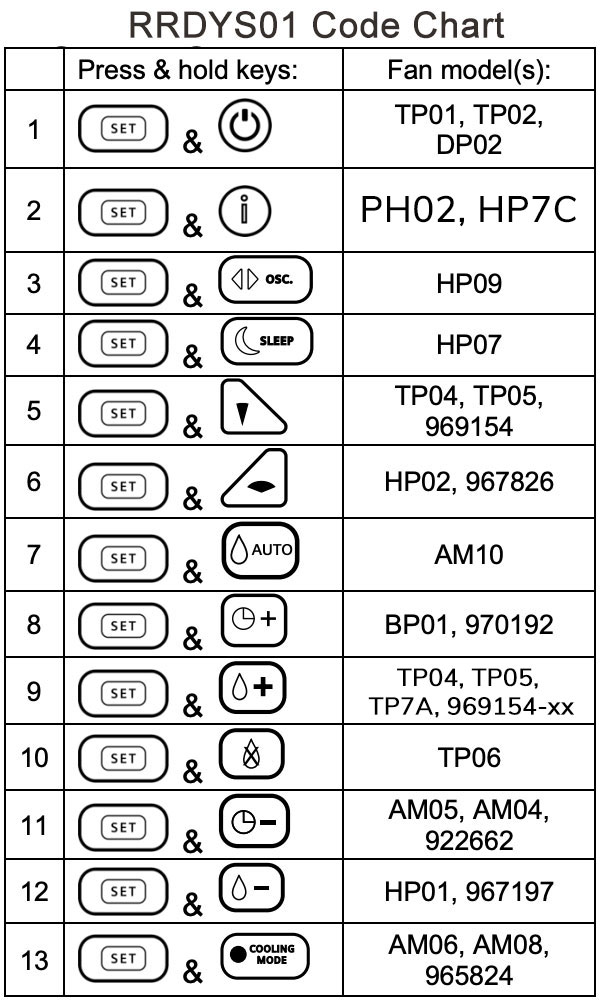
When neither the physical controls nor the app provide sufficient options, creative solutions can restore full remote functionality. While Dyson doesn’t officially support third-party remotes, certain universal options can mimic basic remote functions for emergency speed control.
Program a Basic Universal Remote for Essential Functions
Some learning universal remotes can capture the infrared signals from an original Dyson remote, allowing you to recreate basic functionality:
- Purchase a learning universal remote (models like GE 24913 or Logitech Harmony 650)
- Borrow a working Dyson remote from a friend or contact Dyson support for a temporary solution
- Program the universal remote to learn the “power” and “speed down” functions
- Store the universal remote as your backup solution
Important limitation: This method only works for infrared-controlled Dyson models (typically pre-2019). Newer Wi-Fi models don’t use infrared and won’t respond to universal remotes. Check your model number—units with “HP” or “TP” in the model designation (like TP04) are Wi-Fi only and require the app solution.
Build a Physical Speed Reduction Barrier (Temporary Fix)
For immediate relief when your fan is blowing too hard and no control methods are available, create a temporary airflow diffuser:
- Cut a piece of fine mesh screen (like window screen material) slightly larger than the fan’s loop
- Secure it with removable adhesive strips around the outer edge of the loop amplifier
- This reduces airflow by 30-40% while maintaining air purification functionality
Pro tip: Use black mesh to minimize visual impact on your Dyson’s sleek design. Remove the mesh when you restore proper speed control to maintain optimal performance.
Final Control Strategy: Prevent Future Remote Loss
The most effective solution is preventing remote loss in the first place. Attach your Dyson remote to a designated spot using:
- Magnetic remote holder mounted near your fan’s power outlet
- Dedicated remote pouch clipped to your fan’s power cord
- Smartphone notification that triggers when remote leaves Bluetooth range (with Tile or similar tracker)
Keep a printed copy of your fan’s model number (found on the bottom plate) with your remote—this speeds up replacement orders if needed. Dyson sells replacement remotes for most models directly through their website for $29.99, with delivery typically within 3 business days.
When selecting a replacement remote, verify compatibility with your exact model—Dyson has changed remote designs multiple times. The current standard remote (model RC05) works with most 2020-2023 models but won’t function with older units.
By implementing these control methods, you’ll never be at the mercy of your Dyson fan’s full power setting again. The combination of physical controls, smartphone app functionality, and smart prevention strategies ensures you maintain complete command over your fan’s operation—remote or not. Remember that the MyDyson app provides the most comprehensive control, so prioritize connecting your fan to Wi-Fi for seamless operation regardless of remote availability.

